Kindle’s Customers Strike Back


Fix_it

Kindle Cloud Reader in a nutshell

Those of your who buy e-books at Amazon must be aware of Kindle Cloud Reader application that provides you with a way of reading Kindle e-books through the browser at any place you like it.  May it be a mobile phone,  a tablet or a desktop.

Finding, buying and reading e-books is much more easier than their paper counterparts and you do not have to carry tons of books at your bag to read a few at once. In addition, digital format make it simple to look up words in a dictionary or on the internet, for instance, using Google Translate or Google search.

However, this is not the case with Kindle Cloud Reader. Currently, the is no built-in internet search or internet translate functionality in the Kindle Cloud Reader. More over, there is no option to copy and paste your favorite quotes or text snippets neither. If you’ll search at various forums you’ll see that customers desperately looking for, at least, copy functionality.

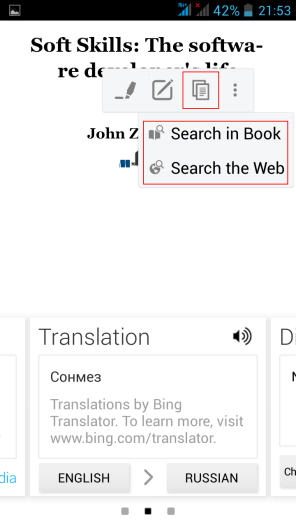
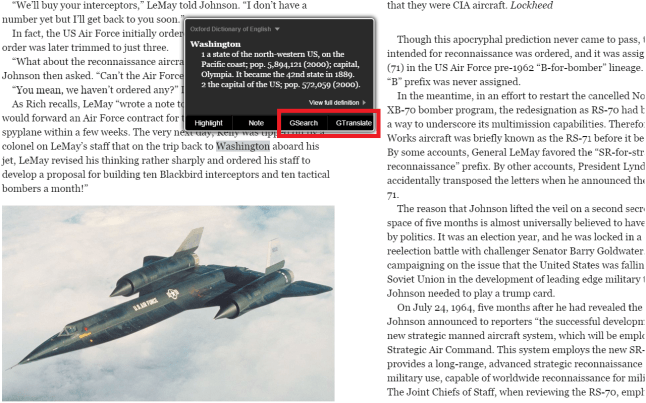
It is a very strange state of things, considering that this functionality very much exists in Android powered Amazon Kindle application as your may see in the screenshot below.

So what’s the matter with Amazon?

As a persistent Amazon customer who is pretty satisfied with their services I thought that the lack of this functionality is a mere unawareness to this issue from Amazon’s side. That is why I wrote them asking to fix this annoying discrepancy on July, 2015. And this is the answer I got.

Amazon

Your Account Amazon.com

Message From Customer Service

Hello,

I understand Kindle for android do not have the feature mentioned by you but I do not know that exact reason why the Kindle developers team have not involved these features on Kindle for Android app.

I understand that you are interested in these features on your Android device. Definitely this feature would be of great help to our customers if it is available. It’s unfortunate that this feature is not available right now.

I’m glad that you’ve contacted us about this feature request. I also apologize to let you know that right now, we don’t have this feature in use.
Since you’re interested in this feature, I’ve passed your message to the Kindle development Team for review and consideration. I’m sure that these features on Kindle for android device will make our customers Kindle experience more convenient.

I want to let you know that we are working on additional feature for our Kindle as part of the next software. Please be assured that your feedback will be considered as we plan further improvements.Your patience and co-operation is highly appreciated in this matter.

I once again apologize for not assisting you in this issue as the feature is not available now. But your feedback will be of great importance for us now and we will definitely try to bring this feature soon.

For the meantime, please extend with us your patience and understanding while we work on this.

Please know that we value our customers satisfaction and convenience above all else it’s the foundation on which our company was built.

If you need any further assistance please write to us :

http://www.amazon.com/kindlesupport

Thanks for using Kindle. Have a pleasant day ahead!

Best regards, Noel S

As you may see customer support has provided no clue when it’ll be done if ever. Not to mention that they mistakenly answered me about Android application, which has this functionality built-in, when I asked about Kindle Cloud Reader. Since then almost 2.5 years have passed.

Facts

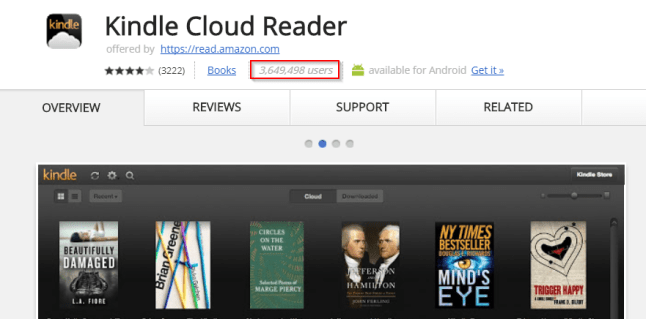
  • As of today Kindle Cloud Reader Chrome extension is used by 3,649,498 users world wide. This is a large amount of user I would say.

2017-10-13 01_13_47-Kindle


  • There is no support for basic features, such as copy, internet search, internet translate in Kindle Cloud Reader.
  • Amazon Kindle application has those features built-in as you may see in the screenshot below and has only 739,148 user so far.

Screenshot_2016-04-18-21-53-48

  • Implementation of the proposed functionality must take a few hours for Amazon’s developers.

Why am I so sure that it takes a few hours to fix this?

I am sure that fixing this will take between two to three hours because due to the lack of this functionality I had to implement it myself. Thanks to this open source repository  I was able to add Google Search and Translate, Copy functionality to Kindle Cloud Reader application. It is currently used by about several thousands users weekly. This amount indicates that these functionalities are needed by customers. However, since I do not understand deeply the design of the Kindle Cloud Reader it is pretty complicated to refactor this application further. In my opinion, this is exactly where Amazon must step in and introduce the fix. 

Meanwhile

Meanwhile, use Kindle Optimizer Chrome Extension if copy, search and translate is what you lack.

Check out the implementation at GitHub.

Taken by the Swift

swift

Swift is here to stay

This post was inspired by a one day Swift crash course. I have to tell you that Swift is a very nice language with impressive syntactic structures that turn iOS/ OS X development into very joyful experience in comparison to Objective C.

What is also very encouraging about Swift that its core is opened source by Apple and the source code is available at GitHub. In addition, development in Swift is now possible not only under OS X, but also on Linux (Ubuntu). It is also possible to develop in Swift on Widows with OS X running under Virtual Machine, but about this later.

Current version of Swift is 2.2 and 3.0 is about to be ready later this year (2016).

Introduction from Swift.org site

About Swift

Swift is a general-purpose programming language built using a modern approach to safety, performance, and software design patterns.

The goal of the Swift project is to create the best available language for uses ranging from systems programming, to mobile and desktop apps, scaling up to cloud services. Most importantly, Swift is designed to make writing and maintaining correct programs easier for the developer.

Playground

1. IBM Swift Sandbox

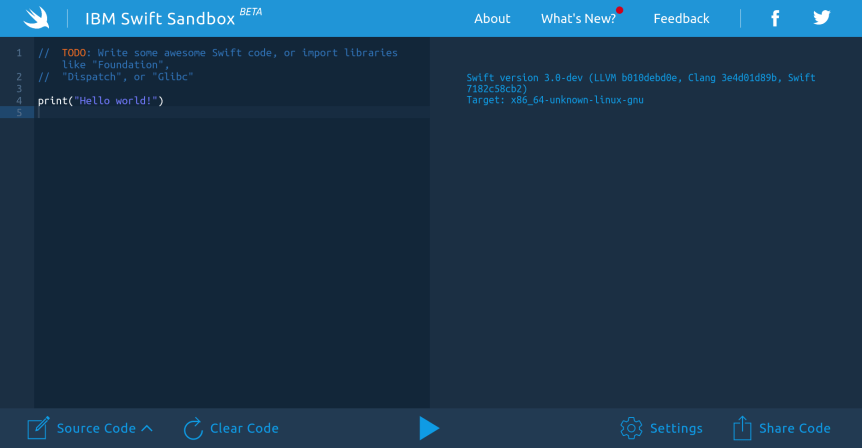
There are a number of ways to start playing with Swift. The most generic one is to use IBM Swift Sandbox web site for this matter. It makes it possible to try Swift out without buying Mac or installing VM with OS X/Ubuntu or installing Ubuntu itself.

OK. When you are at the site what you see is REPL running on Linux. And it looks just like this. And it’s kind of interpreter for Swift.

ibm_santbox


2. Swift on Linux (Ubuntu)

Currently Swift is supported on Ubuntu 14.04 and 15.10. In order to play with Swift on Ubuntu please follow very detailed how to guide from official Swift site here.

3. Swift on Windows in OS X Virtual machine 

As of today Swift is not supported on Windows so Windows users must use virtual machine running Ubuntu in order to be able to develop application in Swift. On the other hand one may develop natively in Swift with VM that runs OS X on it. To be able to do this please use this YouTube detailed tutorial.

Main steps are

  1. Install free VMware Workstation Player
  2. Download OS X image from the link in the tutorial description in YouTube
  3. Install VMware customization batch file.
  4. Configure VM and run OS X under it
  5. Create Apple account in order to be able to download XCode via App Store.

4. Swift on OS X with XCode (pretty expensive for those of us who have no Mac)

If you already posses a Mac then it is easy to install Swift in accordance with the steps below from official Swift site.

That’s it and stay tuned. 

Java Code Geeks

Mono on Linux and feeling good

Mono, mono

If you haven’t heard about Mono on Linux then it is time to fill this gap.
Mono is an open source platform that implements CLI specification and enables building and runnig C# applications on Linux, OS X, Windows which is fun.
This is the official description from the site

Mono, the open source development platform based on the .NET framework, allows developers to build cross-platform applications with improved developer productivity. Mono’s .NET implementation is based on the ECMA standards for C# and the Common Language Infrastructure.

Starting fast

In order to start playing with Mono fast there is a need to install three things.

Linux

  • You need to have Linux (Ubuntu) installed on you PC (vm). It is possible to work with Mono on Windows too.

Mono

  • You need to install mono on you system with these commands in the terminal
sudo apt-key adv --keyserver keyserver.ubuntu.com --recv-keys 3FA7E0328081BFF6A14DA29AA6A19B38D3D831EF

echo "deb http://download.mono-project.com/repo/debian wheezy main" | sudo tee /etc/apt/sources.list.d/mono-xamarin.list

sudo apt-get update

sudo apt-get install Mono-Complete

MonoDevelop

  • Now to be able to code and build C# projects there is a need to install cross-platform IDE for C#, F# and more, such as MonoDevelop.
sudo apt-get install monodevelop
  • After monodevelop package installation simply type in terminal ‘monodevelop‘ for IDE to startup.
  • To learn to use this IDE you may refer to this Xamarin Studio documentation.

 Mono, mono?

To create a simple project when IDE is up

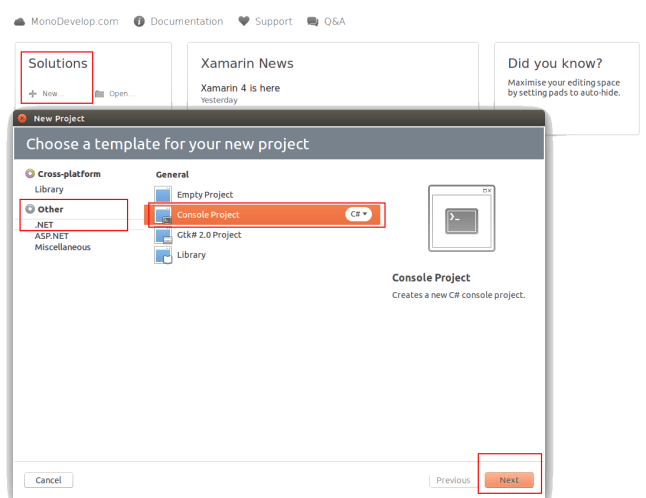
  • Click on create New project under Solutions section
  • When new from will open select .NET under Other section
  • Then select Console Project and click Next

step-1


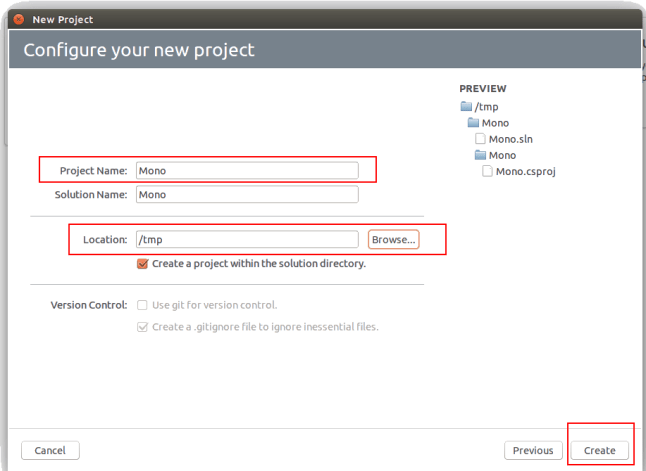
  • In the Configure your new project form name your project
  • Set project location
  • Click Create

step-2


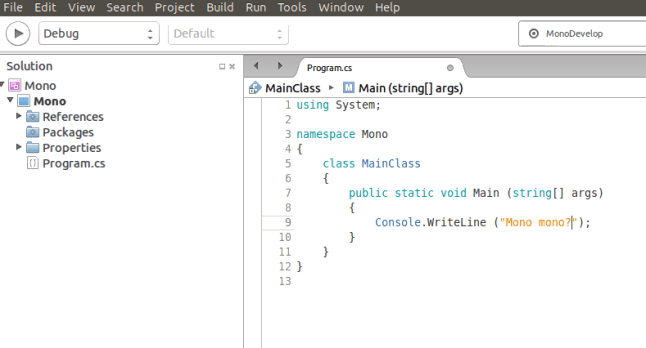
  • That’s it you are all set up

step-3


Wrapping-up

  • Mono is good for you if you feel lonely without C# on Linux
  • Mono is open source and as such contribution is more than valued
  • Mono is great but it seems Stereo must have been even better

Java Code Geeks

Meet ANTLR v4

antlr4

Change brings opportunities

Current post is affected by the fact that I started to work at Checkmarx company that specializes on static code analysis.

As it often happens starting new things brings unexpected opportunities and discoveries. One such discovery for me was ANTLR (ANother Tool for Language Recognition) that was written by professor Terence Parr.

The main purpose of the tool is to generate parsers based on provided grammar or as Terence Parr puts it at the ANTLR site

What is ANTLR?

ANTLR (ANother Tool for Language Recognition) is a powerful parser generator for reading, processing, executing, or translating structured text or binary files. It’s widely used to build languages, tools, and frameworks. From a grammar, ANTLR generates a parser that can build and walk parse trees.

It is fun

From yesterday (12/8/2015) I’ve started to learn working with ANTLR v4 with the help of very detailed and down to earth The Definitive ANTLR 4 Reference book by Terence Parr.

If you’ll consider to read the book then you’d be better off by practicing with OS X or Linux since book’s examples are oriented to those operating systems. As David Ray puts it ‘who does still use Windows machines anyway?’

ANTLR v4 is fun to learn and practice especially if you previously had some experience with Java since the tool is written in Java itself.

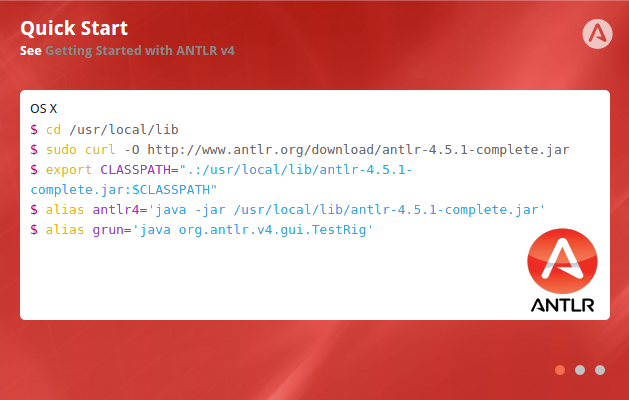
Quick Start

OS X/ Linux (Ubuntu)

$ cd /usr/local/lib
$ sudo curl -O http://www.antlr.org/download/antlr-4.5.1-complete.jar
$ export CLASSPATH=".:/usr/local/lib/antlr-4.5.1-complete.jar:$CLASSPATH"
$ alias antlr4='java -jar /usr/local/lib/antlr-4.5.1-complete.jar'
$ alias grun='java org.antlr.v4.gui.TestRig'

Useful links

There are a couple of links that make you life more interesting and happier since Terence Parr, in my opinion, is not only a very insightful programmer but he’s also very entertaining lecturer.

Well, that’s it. Here come two talks that Terence gave in recent years that are related to parsers and ANTLR.

  1. Video – Why Program by Hand in Five Days what You Can Spend Five Years of Your Life Automating?  – 2011
  2. Video – The Quest for the One True Parser – 2015
  3. Video – ANTLR v4 with Terence Parr – 2013
  4. Book – The Definitive ANTLR 4 Reference – 2013
  5. Book – Language Implementation Patterns – 2009
  6. Thinks of contribution – ANTLR open source at GitHub.

Takeaways

  • Change keeps a surprise for your
  • ANTLR v4 is powerful and fun like never before
  • This post is a first part of a number of posts that I plan on the subject


Java Code Geeks

VS 2015 Installation Instructions

101_BoxShot_2015_07_17T14_17_21

Why not to try Visual Studio Community 2015?

Try to follow these steps for low probability of success installation

  1. Download VS iso file from MS DreamSpark site
  2. Mount the image using instructions from How-To Geek, for instance those ones.
  3. Confirm Default installation.
  4. When you’ll find out that installation will be stuck use Your Uninstaller to get rid of VS 2015.
  5. When you’ll find out that removal process will be stuck (how funny) kill vs_community.exe *32 process in Windows Task Manager.
  6. Finally, remove VS 2015.

Now you have two options left

  1. Reinstall VS Community 2015 with Repair option and pray it will work this time.
  2. Switch to Java on IntelliJEclipse on Ubuntu (or Windows).


Java Code Geeks

seL4 – Formally Verified General-Purpose OS Microkernel

seL4seL4 the first formally verified microkernel OS

Recently I’ve come across an interesting article in Aviation week journal that was related to computing actually.

This article described seL4 microkernel operating system that had unique security features built-in that make this OS hard for hackers to crack. What is interesting is that seL4 microkernel was formally verified using automatic prover.

After digging a bit more I’ve found a whole new world of formal verification in general and of seL4 verification specifically.

If you are interested in formal verification of code and in microkernel operating systems then you’ll find below links useful.

In addition, the detailed article about formal verification of seL4 may be of interest as to SW so to QA engineers.

By the way seL4 OS is used in mobile phones running Android and in other security demanding platforms, such as a quadcopter unmanned aircraft and Boeing’s Unmanned Little Bird (ULB) helicopter that were mentioned in Aviation week article.

Links

Key takeaways

  • Formal verification methods were made practical and affordable.
  • If you need secure general purpose operating system consider seL4.

Java Code Geeks

Kindle Optimizer Chrome Extension

640-400

search_translate

Why use it?

Adds instant Google Search and Translate functionality to the Kindle Cloud Reader.

If you want to

  • Search text from Kindle Cloud Reader in Google in an instance
  • Translate text from Kindle Cloud Reader in Google in an instance
  • Copy text from Kindle Cloud Reader into Google Search with ease

Then Kindle Optimizer extension is just for you!

How to use it?

  1. Add Kindle Optimizer from Chrome Web Store.
  2. Log in to your Kindle Cloud Reader account.
  3. Enjoy!

Known issues

1. First time a text is selected additional ‘GSearch’ and ‘GTranslate’ tabs may not appear in pop-up
(the workaround is to select text again).

NOTE: It is based on the open source from here
https://github.com/binarycrafts/ACRExtensions

Take care and spread the word.

Java Code Geeks

Ubuntu->VMware->MINIX 3

ubuntu-minixUnix-like Microkernel Open-Source Operating System

Meet MINIX 3 a Unix-like, robust and compact operating system that is capable of recovering from drivers crashes. Current MINIX version is stable enough to suit perfectly Real-Time Embedded systems and systems that require stability over long periods of time without restart. Here is the quote from the official MINIX site.

What Is MINIX 3?

MINIX 3 is a free, open-source, operating system designed to be highly reliable, flexible, and secure. It is based on a tiny microkernel running in kernel mode with the rest of the operating system running as a number of isolated, protected, processes in user mode. It runs on x86 and ARM CPUs, is compatible with NetBSD, and runs thousands of NetBSD packages. Get MINIX 3 now and join our community!

‘Without MINIX there wouldn’t be Linux and Android’ – Andrew Tanenbaum

In his talk about the impact of MINIX Andrew Tanenbaum who is the developer of the OS told that without MINIX it wouldn’t be Linux, and without Linux it wouldn’t be Android. The world would be a somewhat different place than it is today. Well, If you are curious at this point what this MINIX is all about then that’s delve into practical installation steps.

How to run MINIX?

I used to work on Windows powered machine, but times change and Linux has fascinated me lately. As a consequence, I’ll describe here the process of installation of MINIX under VMware Player virtual machine running in Ubuntu Linux distribution. Certainly, it is possible to run MINIX under VM in Widows or as a stand alone operating system. But I find this scenarios more difficult to start with if all you want is simply to get first impression from MINIX.

Windows and Ubuntu Dual boot

If currently you are using Linux or Mac OS powered machine then skip this step and go to VMware Player chapter. Else welcome to Windows and Ubuntu dual boot installation description main steps.

  • First of all, backup your Windows system and create recovery disc.
  • Next thing is to download latest version of Ubuntu image and burn it to DVD disc or figure out how to use USB boot. In my case it was Ubuntu 14.04 LTS on Windows 7.
  • There are two ways to setup partitioning during Ubuntu installation: automatic and manual. I chose automatic and had no problems. You may choose whatever you like.
  • After this installation is straight forward, but if you do not sure how to proceed see this detailed video tutorial.

VMware Player

It seems you’ll pretty fast get how to use Ubuntu, since it feels like very intuitive system. Remember Google search and Ubuntu forums are your friends. Now that you are familiar with Ubuntu proceed to this tutorial on how to install VMware Palyer. If you need more tangible explanation watch this video tutorial on the subject.

MINIX 3

OK. Here we are, only few steps left to follow.

  • Download the MINIX version that you need from here. I used the 3.3.0 image downloaded for that matter.
  • When you’ve downloaded it there is a need to decompress it using bzip2 application.
bzip2 -d filename.bz2
  • Here are the steps to setup VMware Player that you’ve installed previously. The steps were taken from official MINIX site VM installation description with my adaptations.

Virtual Machine Setup

Before you install Minix 3, you will need to create a new virtual machine configuration. The VM configuration specifies the parameters of your Virtual machine, e.g., how much memory you want the VM to use, how big you want the virtual hard disk to be, etc.

Create a Virtual Machine — VMware Workstation and VMware Player (version > 3)

  1. Open VMware Player and choose to Create a New Virtual Machine.
  2. Select Use ISO image radio-button and browse to where you`ve decompressed MINIX image file; and then, press Next.
  3. At the Select a Guest Operating System, select Other and Version Other.
  4. For Virtual Machine Name, enter Minix3 or some other meaningful name.
  5. At the Specify Disk Capacity, enter 2 GB, which is enough for all packages and sources. You can make it larger if you need to add more source files. (Note, however, that maybe you’ll need 8 GB due a problem with X Window System configuration that we’ll encounter in a minute. Andrei)
  6. At the Ready to Create Virtual Machine, ensure that Power on this virtual machine after creation is not checked; and then, press Finish.

You will need to edit the memory settings according to your needs. In the Devices section, select the Memory, and adjust the memory accordingly. Note that, in order to run the X Window System on Minix, you need at least 384MB.

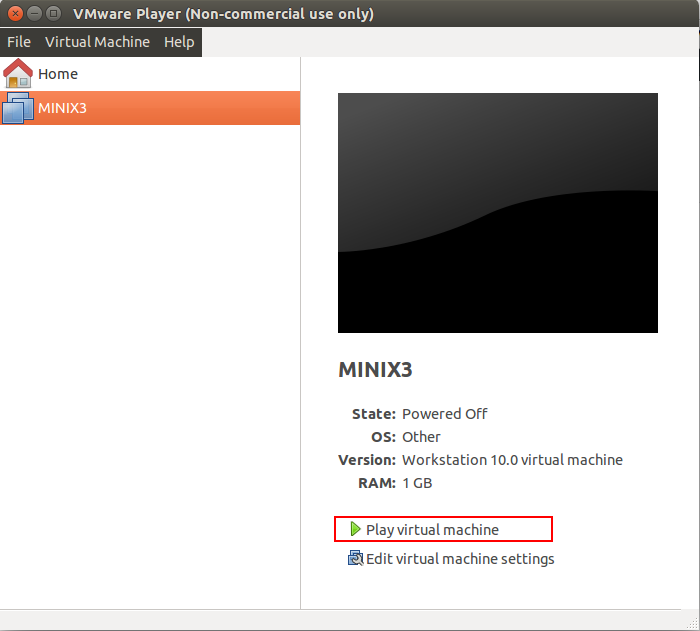
When VM starts after you’ve pressed Finish in step 6 or you’ve played VM manually proceed to regular MINIX installation that were taken form this tutorial.

MINIX_VM_play

Installing

These steps correspond to the steps on the screen.

Running the Setup script

When the login prompt appears, login as root. Press Enter when prompted for a password.

To start the installation of MINIX on the hard disk, type

setup

After this and all other commands, be sure to type ENTER (RETURN). When the installation script ends a screen with a colon, hit ENTER to continue.

If the screen suddenly goes blank, press CTRL-F3 to select software scrolling (should only be needed on very old computers). Note that CTRL-key means depress the CTRL key and while holding it down, press “key.”

Select keyboard type

When you are asked to select your national keyboard, do so. This and other steps have a default choice, in square brackets. If you agree with it, just hit ENTER. In most steps, the default is generally a good choice for beginners. The us-swap keyboard interchanges the CAPS LOCK and CTRL keys, as is conventional on UNIX systems.

Create or select a partition for MINIX

You will first be asked if you are an expert in MINIX disk partitioning. If so, you will be placed in the part program to give you full power to edit the Master Boot Record (and enough rope to hang yourself). If you are not an expert, press ENTER for the default action, which is an automated step-by-step guide to formatting a disk partition for MINIX.

Select a disk

An IDE controller may have up to four disks. The setup script will now look for each one. Just ignore any error messages. When the drives are listed, select one. and confirm your choice.

Select a disk region

Now choose a region to install MINIX into. You have three choices:

  1. Select a free region
  2. Select a partition to overwrite
  3. Delete a partition to free up space and merge with adjacent free space

For choices (1) and (2), type the region number. For (3) type:

delete

then give the region number when asked. This region will be overwritten and its previous contents lost forever.

Confirm your choices

You have now reached the point of no return. You will be asked if you want to continue. If you do, the data in the selected region will be lost forever. If you are sure, type:

yes

and then ENTER. To exit the setup script without changing the partition table, hit CTRL-C.

Reinstall choice

If you chose an existing MINIX partition, in this step you will be offered a choice between a Full install, which erases everything in the partition, and a Reinstall, which does not affect your existing /home partition. This design means that you can put your personal files on /home and reinstall a newer version of MINIX when it is available without losing your personal files.

Select the size of /home

The selected partition will be divided into three subpartitions: root, /usr, and /home.

  • /home, will contain only your own personal files. Specify how much of the partition should be set aside for your files. You will be asked to confirm your choice.
  • /usr, contains most of the software, as well as all the optional packages. It is advised to give it several gigabytes if possible. It’s size is computed as the remaining of space left on the MINIX partition, so the bigger /home is, the smaller /usr is.

Select a block size

Disk block sizes of 1-KB, 2-KB, 4-KB, and 8-KB are supported, but to use a size larger than 4-KB you have to change a constant and recompile the system. Use the default (4 KB) here.

Select your Ethernet chip

You will now be asked which (if any) of the available Ethernet drivers you want installed. Network settings can be changed after installation. Please see Network Configuration for details.

Restart

When the copying is complete, MINIX is installed. Shut the system down by typing:

poweroff

Always stop MINIX this way to avoid data loss as MINIX keeps some files on the RAM disk and only copies them back to the hard disk at shutdown time.

Next Steps

Note! The MINIX installation does not install the things like X11 and GCC automatically. You have to do this after reboot according to Post installation instructions.

What’s next?

Now it is time to update  default packages that comes with MINIX and install additional ones you need. I propose to install all available packages. The steps below are taken from here.

Installing Binary Packages

pkgin

pkgin is the binary package manager for MINIX 3. This page describes how to use it.

Software packages also can built from their source code. See Installing Source Packages for details.

Using pkgin

First, you will need to fetch the package list and populate the package database:

# pkgin update

This step can be re-run to update the package list.

If you would like to install a package, you can run:

# pkgin install git-base
# pkgin install binutils
# pkgin install clang

Also, there is a way to install everything:

# pkgin_all

 X Window System mystery

So far, there is some problem, at least for me to install X Window System on MINIX. Update me if you’ll succeed.

Take care.
Java Code Geeks

Fork GitHub repository to your blog. The workaround story.

NuPIC_IsraelUpdate: the wiki was updated. So Houston we have no problem.

Thanks to David and Matt.

NuPIC, we’ve had a problem!

‘To whom it may concern’ phrase is appropriate to start this post. But actually I know whom it may concern.

David, Pascal and Matt etc. and all other hackers who are eager to play with NuPIC Open Source project.

Those of you who want to fork numenta/htm.java repository in GitHub and then configure working Java project in Eclipse may stumble upon the problem of out-of-date Wiki. Particularly, I mean Eclipse Setup Tips.

Missing ‘Edit’ button

So far, I have no permission to edit the Eclipse Setup Tips page, so as a workaround I`ll provide the updated version of it in this blog post with updated content in green.

Updated version of the Wiki page

Eclipse Development Environment Setup

Below you’ll find a step by step procedure for setting up your development environment in Eclipse (recommended). The reason this is recommended is because it is known by this author that by using the PyDev

(Python Plugin: in Eclipse click “help > Eclipse Marketplace” in the search field type PyDev or Python)

plugin, you can run both the Python version of NuPIC and the Java version side by side!(This text was written during the “porting phase” of htm.java which is occurring rapidly and may not apply by the time you read this.)

If you have Eclipse already setup, you can skip step 1 and 2.

1.) Download Eclipse – link can be found here

2.) Setup your workspace – Eclipse’s concept for a container directory that contains project information relevant to the work you’re doing. Give your workspace a name.

3.) Install Gradle – Nothing to do with Eclipse (yet). This is a system install and you will end up installing both Gradle as a separate tool and the Gradle plugin, information can be found here .Confirm that Gradle is installed correctly by going to your “terminal” or command line and typing “gradle check” from just inside the htm.java directory. You should see the the project build and tests run and finish with a “success” message.

If instead, you get something like this

no_gradle_path

C:\Users\XYZ\Documents\GitHub\htm.java>gradle check
‘gradle’ is not recognized as an internal or external command,
operable program or batch file.

Then it means that PATH environment variable is not set. An immediate workaround is to set it with this command

C:\Users\XYZ\Documents\GitHub\htm.java>set PATH=C:\Program Files\gradle-2.4\bin;%PATH%

If while trying to ‘gradle check’ once again you`ll get following error 

gradle_jvm_version_mismatch

C:\Users\XYZ\Documents\GitHub\htm.java>gradle check
:compileJava FAILED

FAILURE: Build failed with an exception.

* What went wrong:
Execution failed for task ‘:compileJava’.
> invalid source release: 1.8

* Try:
Run with –stacktrace option to get the stack trace. Run with –info or –debug option to get more log output.

BUILD FAILED

Total time: 53.05 secs

It means that the PATH to JVM picked by gradle is not the one used by Eclipse project.

To fix this immediately set the path to the folder where appropriate JDK version resides. In this case to jdk/jre 1.8

C:\Users\XYZ\Documents\GitHub\htm.java>set JAVA_HOME=C:\Program Files\Java\jre1.8.0_25

C:\Users\XYZ\Documents\GitHub\htm.java>gradle check
:compileJavaNote: C:\Users\XYZ\Documents\GitHub\htm.java\src\main\java\org\numenta\nupic

\util\SparseObjectMatrix.java uses unchecked or unsafe operations.
Note: Recompile with -Xlint:unchecked for details.

:processResources UP-TO-DATE
:classes
:compileTestJava
:processTestResources
:testClasses
:test
:checkwarning: Supported source version ‘RELEASE_6’ from annotation processor ‘org.openjdk.jmh.generators.BenchmarkProcessor’ less than -source ‘1.8’
Note: Some input files use unchecked or unsafe operations.
Note: Recompile with -Xlint:unchecked for details.
1 warning
No matching benchmarks. Miss-spelled regexp?
Use EXTRA verbose mode to debug the pattern matching.

BUILD SUCCESSFUL

4.) Open Eclipse in your newly created workspace, and install the Gradle plugin. Click on the top menu bar “Help > Eclipse Marketplace”. In the search field type Gradle, and hit. Follow the directions (install everything). install this plugin, that worked well lately,  Gradle Integration for Eclipse (4.4) 3.6.4.RELEASE

gralde_plugin

5.) Import your project as a Git Project. From the top menu in Eclipse, choose “File > Import…”, then choose “Git > Projects from Git” … hit next.

Import Git

…then choose “Existing local repository”

… it should look like the following (after clicking “Add” and locating your htm.java clone directory)

… Import existing projects should already be selected. If not, select it and click “Finish”

6.) Now setup your build path. Right-click on your project root in the “Package Explorer” tab and choose “Properties” at the bottom of the menu. On the next dialog, click “Java Build Path” and then add two source directories (from the “Source” tab) to your path by clicking “Add Folder…” twice and selecting

a.) src/main/java,  b.) src/test/java, c.)  src/jmh/java as shown below:

(update screenshot with additional folder)

eclipse-5

… Add the libs/jars to the path. Right click on your project root and at the bottom of the menu click “Properties” again. From the “Libraries” tab, click on “Add JARs” – navigate to “libs” and select all the jars (hold down the key and select each and every jar). as seen below:

(update screenshot with additional dependencies)

eclipse-6

This will allow you to build the project! 🙂

To get the tests to run, from the top menu bar, click on the tiny black down-arrow to the right of the round green button with the right-facing white arrow. This is your “Run” button used to launch any Java executables. You can set up run configurations from here, but usually if you have a test class or any Java file with a “public static void main(String[] args) method in it, you can just right-click anywhere in the file or right-click the file in the “Package Explorer” and click “Run As” > “Application” or “JUnit test”.

As always, your mileage may vary depending on exact setups, but this should help 90% of developer environments to get configured correctly!

Happy Hacking! 🙂

Help needed

That’s it more or less. I think Pascal and David may help me to solve the ‘Edit’ button mystery once and for all.
Java Code Geeks